Simulink
Com afegir blocs
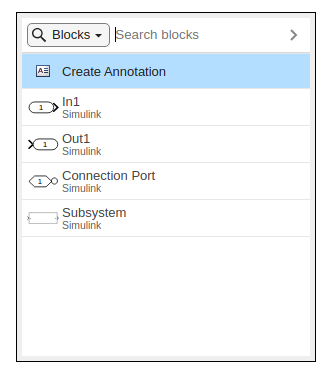
A Simulink, fes doble clic en un camp buit i busca el bloc que vols inserir a la teva planta.
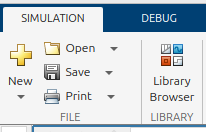
Alternativament, pots navegar per la biblioteca de blocs. Ves a la pestanya Simulation i fes clic a Library Browser.
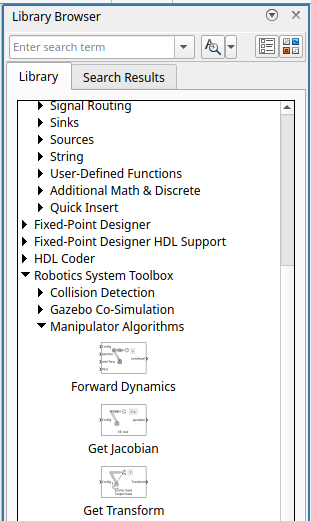
S’obrirà el navegador, des d’on pots arrossegar els blocs desitjats cap a la teva planta.
Connectar blocs
Per connectar blocs, simplement selecciona el cable de senyal o la sortida del bloc i l’entrada del bloc desitjat.

Donar format als blocs
Pots canviar l’aparença dels blocs donant-los format.
- Fes clic dret sobre un bloc i desplega la pestanya Format. Des d’aquí pots rotar o invertir el bloc.
- Pots canviar la mida d’un bloc arrossegant una de les seves cantonades.
Donar format a la planta
Pots seleccionar una secció del teu model i arrossegar-la per crear més espai; les línies de senyal es mantindran intactes i s’estendran o es retrauran.
Pots arrossegar les línies de senyal per fer que la planta sigui més fàcil de llegir.
Eines i blocs a utilitzar
A Simulink pots utilitzar una varietat de blocs diferents per aconseguir el comportament desitjat. A continuació introduirem alguns blocs que pots utilitzar per resoldre els exercicis d’aquest currículum. (Les solucions alternatives no són incorrectes!)
Constant
Constant et permet inserir un escalar numèric o un array, que també pots carregar des del workspace.
Sum
El bloc Sum et permet sumar o restar senyals entre si. Canviant la configuració dins del bloc pots augmentar la quantitat de senyals que s’han de processar. Afegint un | pots canviar les posicions de les entrades.
Scope
El bloc Scope et permet visualitzar les trajectòries dels senyals. Fes clic a sobre o a sota d’una entrada per crear una entrada de senyal addicional. La pots eliminar seleccionant l’entrada i prement "del"
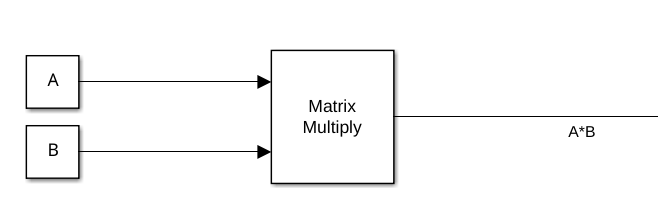
Matrix Multiply
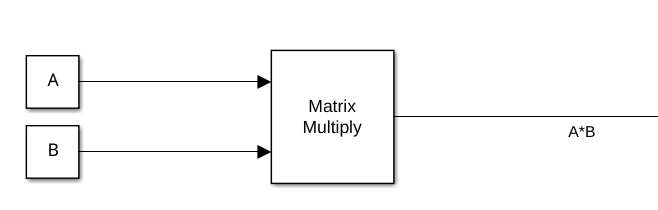
Per multiplicar matrius (matriu com a entrada). També es pot utilitzar per multiplicar una matriu per un vector.
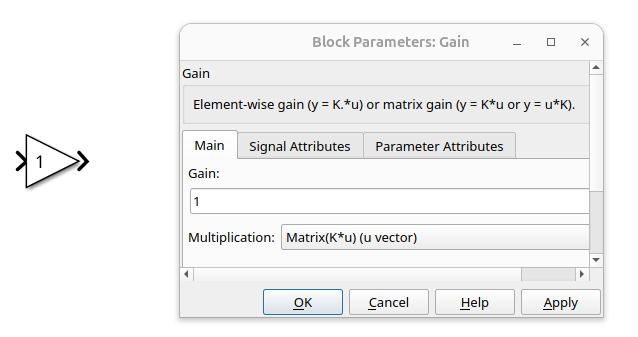
Gain
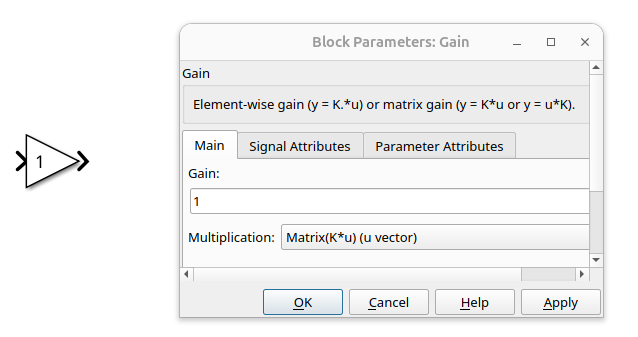
Té un guany estàtic. Es pot carregar des del workspace mitjançant el nom d’una variable.
Permet valors escalars i matrius com a guany.
Selecciona una opció de multiplicació adequada per a la teva aplicació.
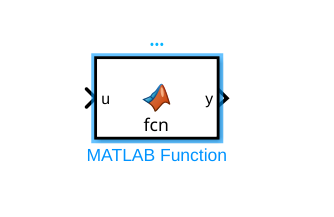
MatlabFunction
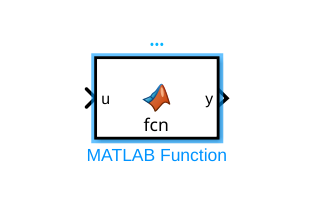
Permet utilitzar codi dins de Simulink. Defineix entrades i sortides a la declaració de la funció.
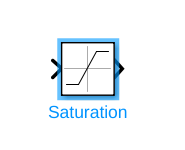
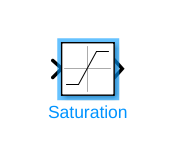
Saturation
Aquest bloc s’utilitza per limitar un senyal. Defineix el límit superior i inferior permès.
Pot acceptar un vector com a límits (corresponent a la mida del vector d’entrada).
Mux/Demux
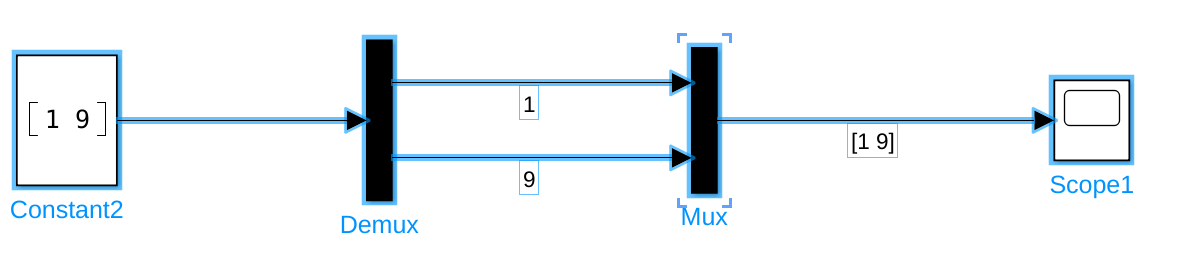
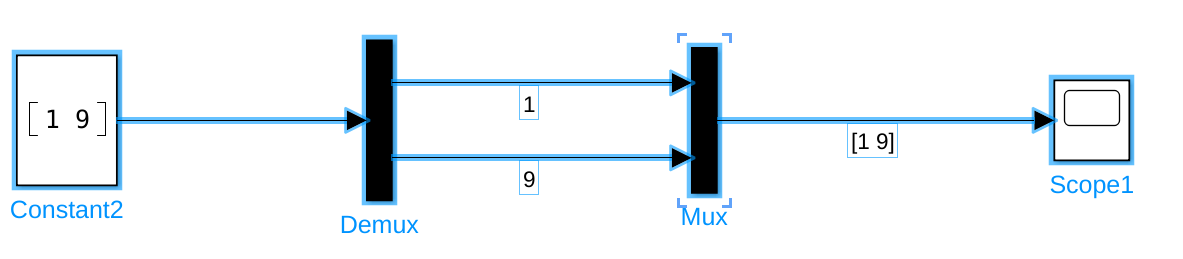
Els blocs Mux i Demux es poden utilitzar per separar o combinar senyals en un vector.
Executar una simulació
Ves a la secció Simulation. Ho veuràs sota la pestanya SIMULATE.
Per executar una simulació, primer has d’establir la durada de simulació desitjada.
Estableix un nombre positiu o inf per a una execució contínua.
Per iniciar la simulació, prem Run
També pots simular pas a pas prement el botó Step Forward. Tanmateix, això és més útil en aplicacions offline.
Un cop en execució, pots pausar o aturar la simulació prement: